 Weaver
Model Context Protocol (MCP)
Connect external servers to enhance your AI models with additional capabilities
Model Context Protocol (MCP)
Model Context Protocol (MCP) enables your AI models to access external data and services. Weaver provides seamless integration with MCP servers to enhance your AI conversations.
Note: Due to browser CORS limitations, some MCP servers may only work if you enable
Use Proxyin Settings → General. No data is logged on our servers.
Setting Up MCP Servers
Follow these steps to add your MCP server to Weaver:
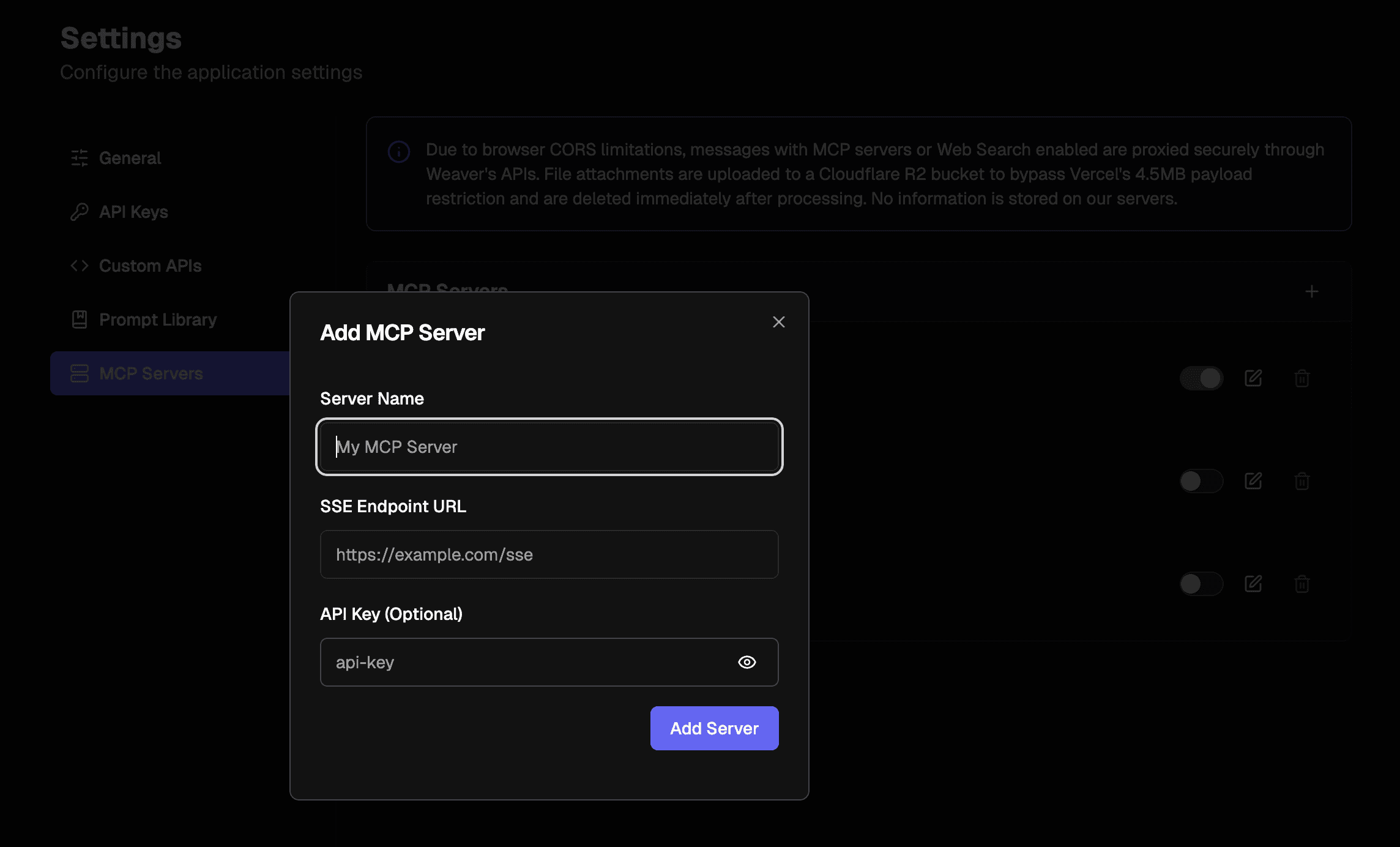
- Go to Settings → MCP Servers tab
- Click the + button to add a new MCP server
- Enter a name for the server
- Enter a valid SSE enabled server URL
- Enter an optional API key for authorization
- Toggle the Local Server option if you are running the server locally
- Click Add Server and ensure that the server is toggled on
Note: Only hosted SSE servers are supported. You may have to toggle on Settings → General → Use Proxy to avoid CORS errors. If running a local MCP server, you may have to set the response header
Access-Control-Allow-Origin: *within the MCP server code to allow the browser to connect.
Using MCP Tools
When using a model that supports tool calling, Weaver will automatically display MCP tool calls and execute them. This enables your AI assistant to perform tasks like:
- Searching the web for information
- Accessing custom knowledge bases
- Running code or calculations
- Interacting with external APIs
Example Implementation
When an MCP tool is called, you'll see the process in your chat interface:
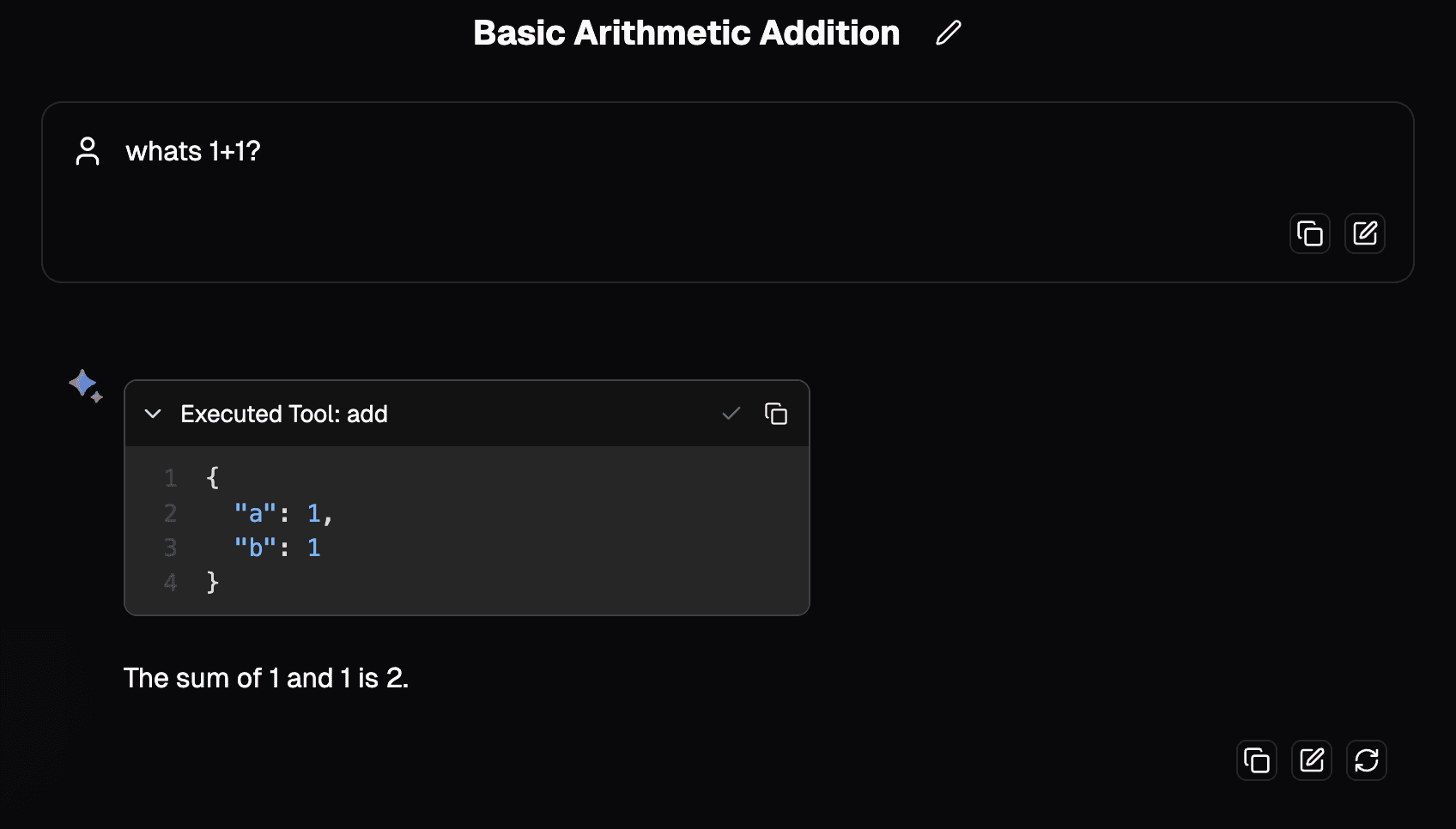
The model can request information from your MCP server and incorporate the results directly into its response, creating a more capable and contextually aware AI assistant.