Weaver
Creating images
Create images using various AI models within Weaver
Image Generation in Weaver
Weaver currently supports AI image generation for OpenAI and Google Gemini.
Supported Image Generation Models
OpenAI
To generate images with OpenAI models:
- Enter your OpenAI key in Settings → API Keys
- Choose a compatible model. Supported Models
- Write a descriptive prompt for the image you want to create. You can specify different output parameters in your prompt and Weaver will automatically pick the best setting:
- Image Size:
1024x1024(square)1536x1024(landscape)1024x1536(portrait)auto(default)
- Quality:
lowmediumhighauto(default)
- Background:
transparentopaque
- Image Size:
No further configuration is required. Note that you must use an api key directly from OpenAI. Third party routers will not work.
Google Gemini
To generate images with Gemini:
- Add and select the model
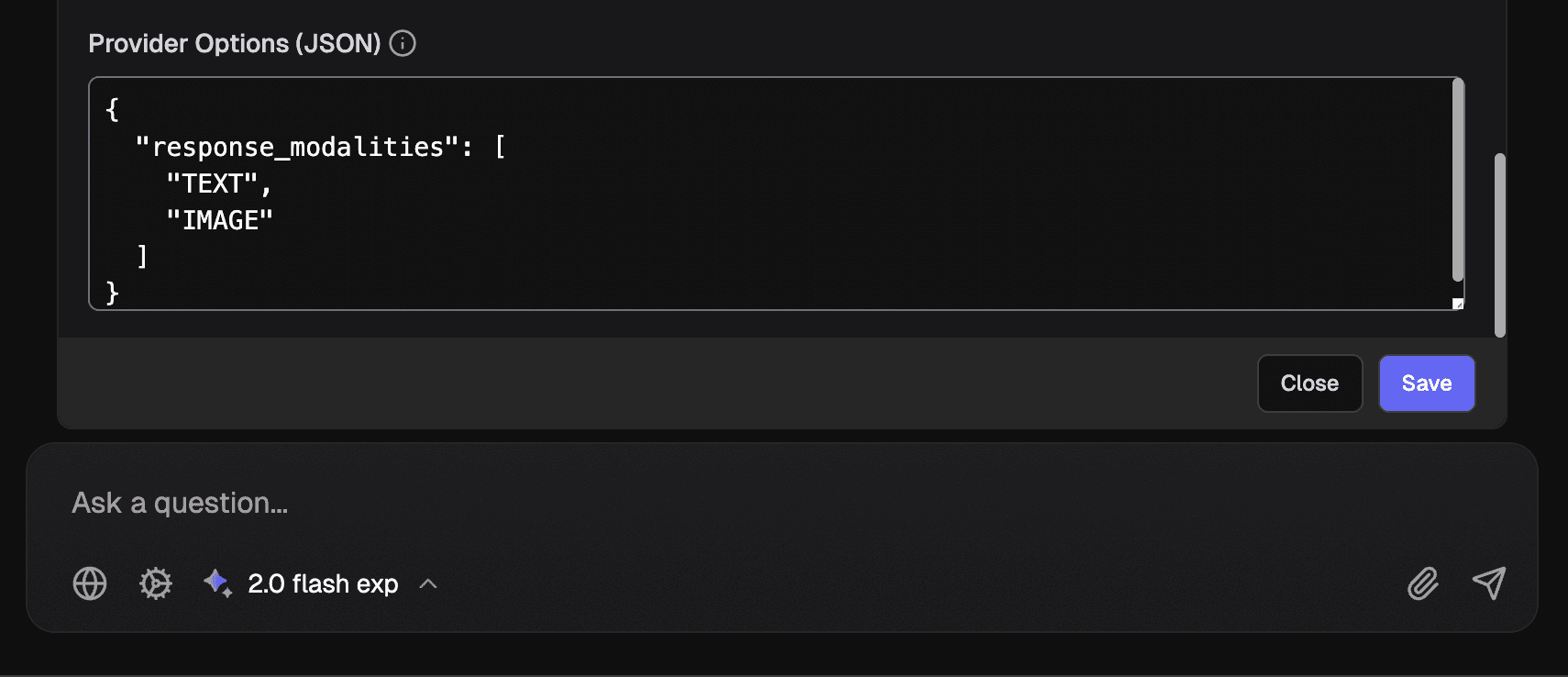
Gemini 2.0 Flash (Images)from the model picker (or addgemini-2.0-flash-preview-image-generationas a custom model) - Configure the Provider Options (required for image generation)
- Write a descriptive prompt for the image you want to create.
Required Configuration
To enable image generation with Gemini models, you must add the following JSON to the Provider Options section in the chat configuration:
Without this configuration, the model will only return text responses.
Accessing Provider Options
- Click the gear icon next to the model picker
- Scroll down to the Provider Options (JSON) section
- Enter the required JSON configuration
- Click Save to apply your changes
Best Practices for Image Prompts
For the best results when generating images:
- Be specific and detailed in your descriptions
- Mention artistic styles if you have a particular look in mind
- Include information about lighting, composition, and mood
- Specify what you don't want to see in the image
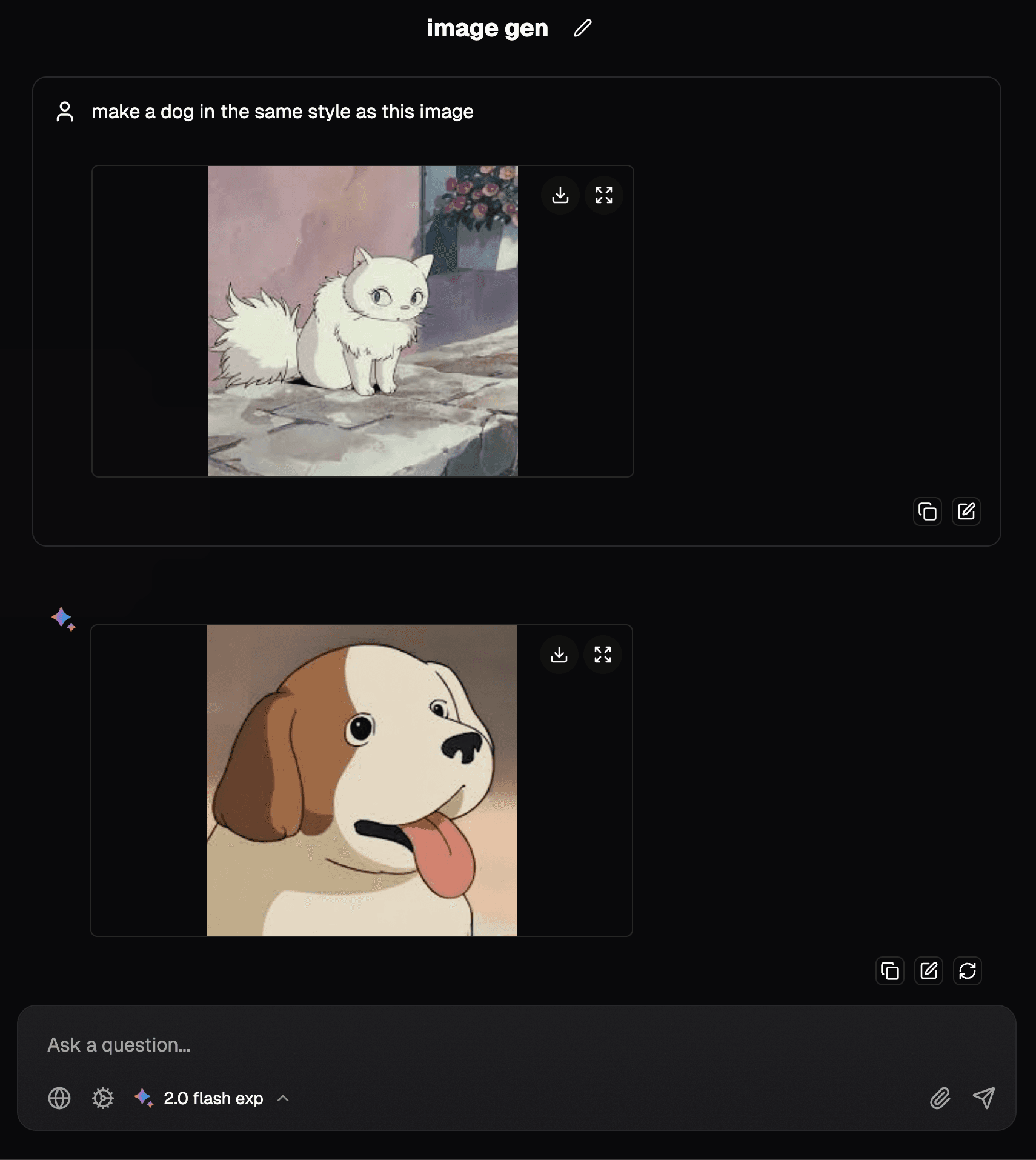
- Provide a reference image
- Lower temperature = stricter adherance to your prompt. Higher = more creative