 Weaver
Quick Start Guide
Get started with Weaver, the feature-rich chat app for all your favorite LLMs
Setting Up API Keys
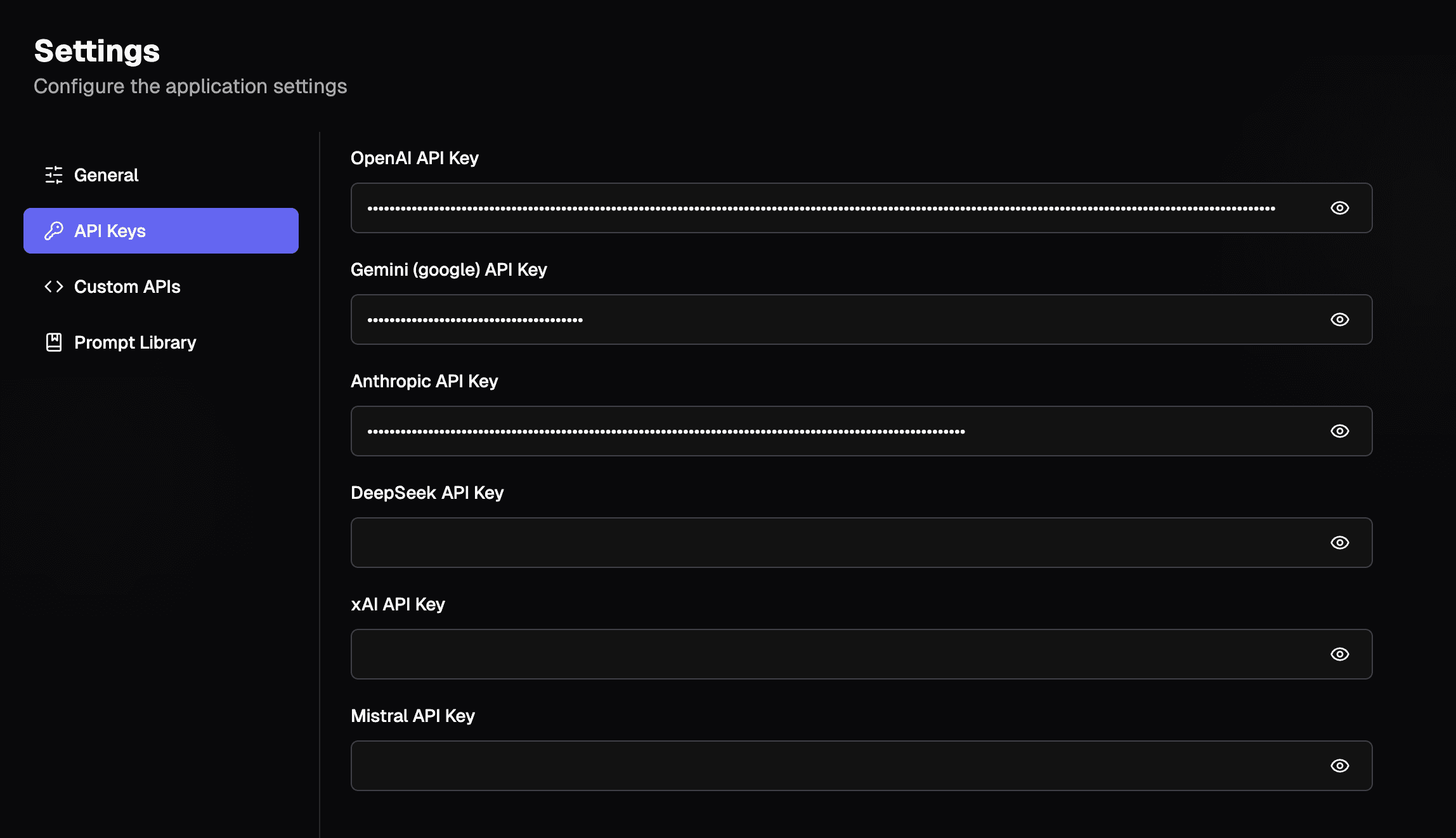
To get started with Weaver, you'll first need to add your API keys for the models you want to use:
- Navigate to Settings → API Keys tab
- Enter your API keys for different providers (OpenAI, Anthropic, etc.)
- Once added, these models will be available in the model picker
Starting a New Chat
There are multiple ways to start a new conversation:
- Click the New Chat button in the sidebar
- Use the input bar on the home page
- Press Command/CTRL + K to open the chat search, then type your query and press Enter
Web Search Integration
Weaver includes a powerful web search tool:
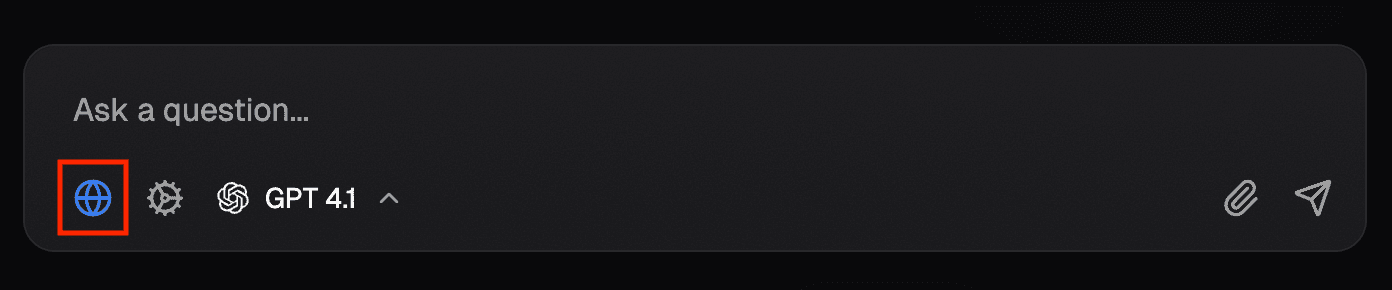
- Click the Web Search button in the input bar
- Any LLM that supports tool calling can utilize this feature to retrieve internet data
- Perfect for questions that require up-to-date information
Note: toggling on web search will auto inject a system prompt for inline citations. If you wish to use the model's native web search instead of Weaver's, you can add the system prompt manually to enable inline citations:
Use Proxy
Due to CORS limitations, certain providers and MCP tools will not work unless ran on the server. Toggle this option on to use Weaver's proxy server. No information is logged or stored using the proxy server.
Automatic Chat Titles
You can enable automatically generated titles for your chats in Settings → General → Auto Chat Title
- We recommend using a fast and cheap model like Gemini Flash series or GPT 4.1 mini/nano
- Both the toggle and model need to be selected for the feature to work