 Weaver
Working with Files
Learn how to upload, view, and manage files in Weaver
Supported File Types
Weaver allows you to include various files in your conversations:
- Documents: PDF files (Openai, Gemini, and Mistral only)
- Images: Common formats like PNG, JPG, JPEG, GIF, etc.
- Text and Code: Plain text, programming languages (JavaScript, Python, etc.), markup languages
Unsupported file types will be automatically filtered out during the upload process.
Adding Files to Conversations
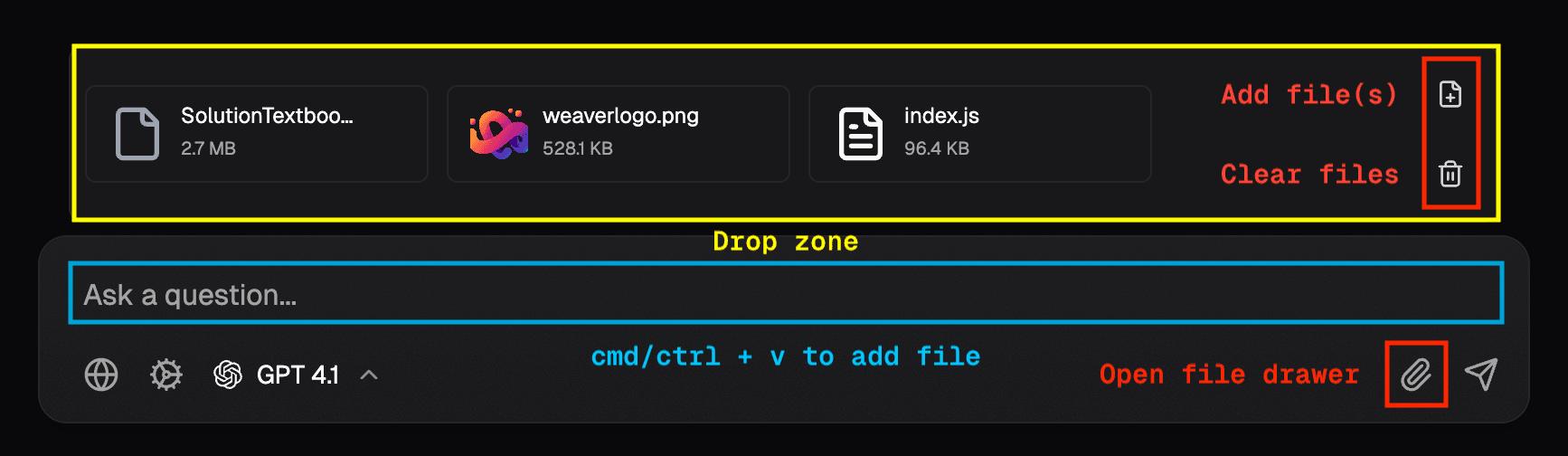
You can add files to your chat in multiple ways:
- Paste directly into the message input area
- Drag and drop files into the attachment drawer
- Click the upload button to select files from your device
Viewing Attachments
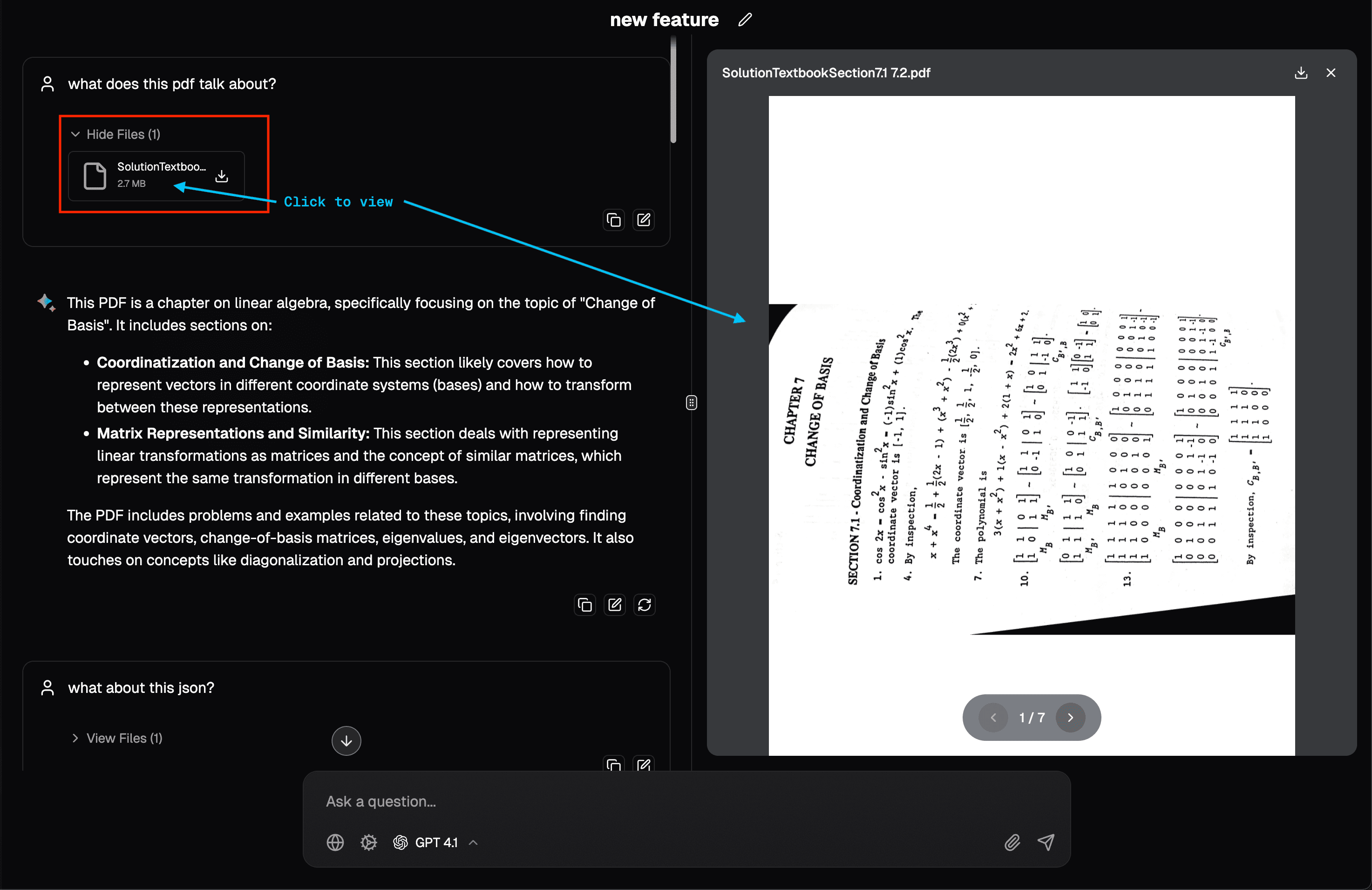
Files attached to messages can be easily accessed:
- Look for the attachments dropdown in any message with files
- Click on the dropdown to expand the list of attachments
- Click on any attachment to view it directly in the interface
For code files and plain text, the content will be displayed with proper syntax highlighting when applicable.
File Management
Downloading Files
To save any attached file to your device:
- Click the download button next to the file in the attachments list
Storage Considerations
Important notes about file storage in Weaver:
- Files are stored locally in your browser
- They are not synced with any external storage services
- Files may be lost if you clear your browser data or switch devices